


Introduction
HYPER LINNWORKS CRM is integrated with Linn works to enable centralized management of products, inventory, warehouses, pricing, and order synchronization.
This integration ensures seamless data flow between the CRM system and Linn works, allowing businesses to maintain accurate stock levels, structured product categorization, and controlled warehouse-level operations.
The objective of this integration is to:
- Synchronize products from Linn works into CRM
- Maintain real-time inventory visibility
- Map and manage multiple warehouses
- Apply pricing rules through pricelists
- Ensure accurate stock deduction at warehouse level
- Synchronize Orders from Linn works into CRM
1. System Installation Overview
Hyper Linnworks CRM can be installed and configured directly from the Application Store inside your Linn works.
During installation, the system prepares all modules such as Sales, POS, CRM, Inventory, and Dashboards.
The setup process takes 5–10 minutes, and the platform guides you through each step.
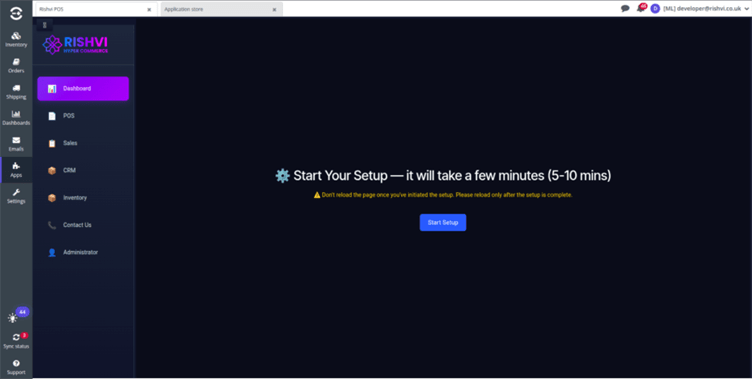
Step 2. Click “Start Setup”
A blue button appears:
🔵 Start Setup
Clicking this will launch the installation process.
The system now begins configuring:
- POS
- Dashboard
- Sales Module
- CRM
- Inventory Module
- Logistics & Metrics
- User Access
- Base system dependencies
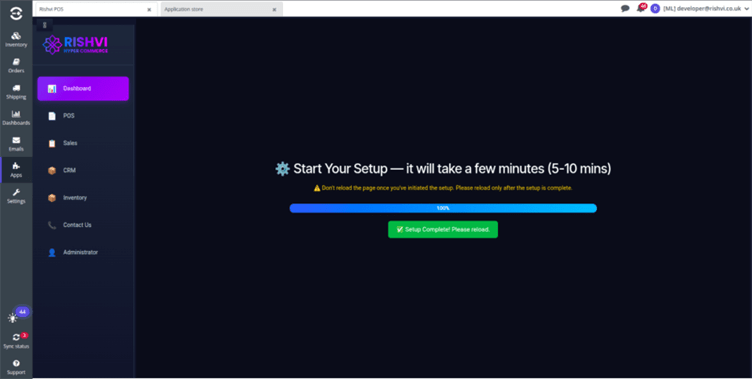
Step 3 – Monitor Setup Progress
You will see a loading bar with status:
100% – Setup Complete! Please reload it.
Important notes from the screen:
- Do NOT refresh the page during the setup.
- Refresh only when the progress reaches 100%
- The screen confirms successful installation.
After full progress:
A green message appears:
“Setup Complete ! Please reload.”
Step 4 – Reload the Page
Once the setup finishes:
- Hit browser refresh
- Or click the system reload button
This loads the fully activated CRM system.
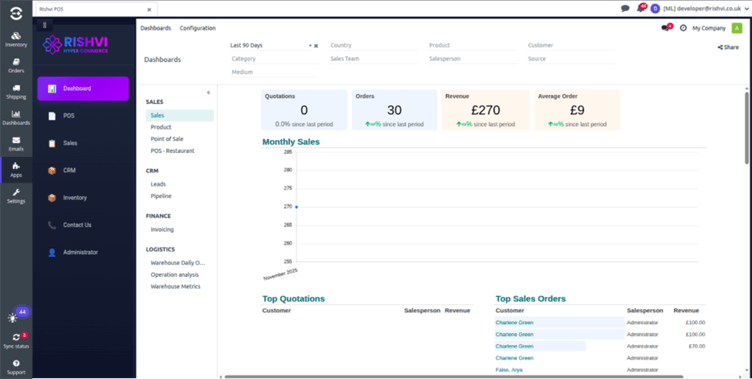
After reloading, you see the Rishvi CRM dashboard with:
- Sales orders count
- Revenue
- Average order value
- Monthly sales graph
- Top sales orders
- Quotations overview
This means Hyper Linnworks CRM has been installed successfully and is now operational.
Logging Into the System
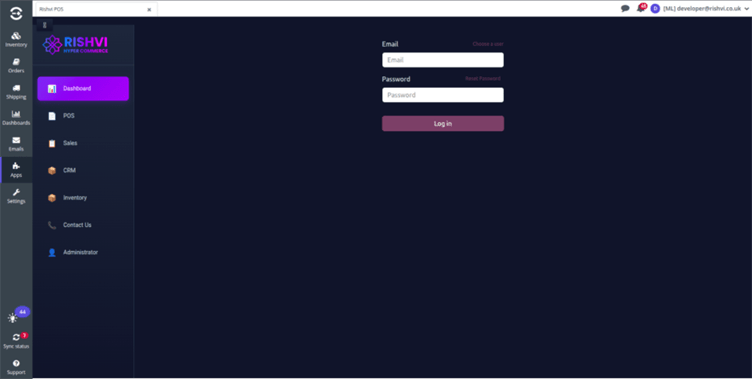
If you are logged out after installation, a login screen appears:
- Password
- Login button
You must enter your administrator’s login details to proceed.
Additional options:
- Choose a user
- Reset password
Post-Installation Setup Recommendations
After installation, you should configure:
🔹 1. Company Information: Logo, address, tax info.
🔹2. Products & Categories: Add all items to be sold.
🔹3. Pricelists: Retail / wholesale pricing rules.
🔹4. Payment Methods: Configure cash, card, bank payments.
🔹5. Users & Roles: Assign users and permissions.
🔹6. Warehouses & Locations: Enable stock tracking.
Configuring System Parameters
System parameters are key-value pairs used to control system behavior without modifying the source code. They allow administrators to dynamically configure features, integrations, and business logic.
What are System Parameters?
System parameters store configuration values in the format:
Key = Value
- Key → A unique identifier for the configuration
- Value → The setting or data associated with the key
Accessing System Parameters
To configure system parameters:
- Navigate to:
Settings → Technical → Parameters → System Parameters
The following system parameters must be configured to enable Hyper Linnworks CRM/POS integration:
- rishvi_app : CRM/POS
- lw_customer_id : xxxxxx
- lw_token : <your_linnworks_api_token>
- rishvi_base_app_url : https://olbdsknit5g6vrtztqq4wlotea0vvtxm.lambda-url.eu-west-2.on.aws
Ensure all values are correctly configured to avoid integration issues.
Note
If you do not have the required values such as lw_token, lw_customer_id, or any other system parameter, please contact the Rishvi Administrator to obtain the necessary credentials and configuration details.
Ensure all values are correctly set to avoid integration issues.
Inventory Operations
Inventory allows you to manage, sync, and update all inventory data between Rishvi and Linn works. It provides tools to import warehouses, categories, product quantities, and bulk inventory in a structured and automated way.
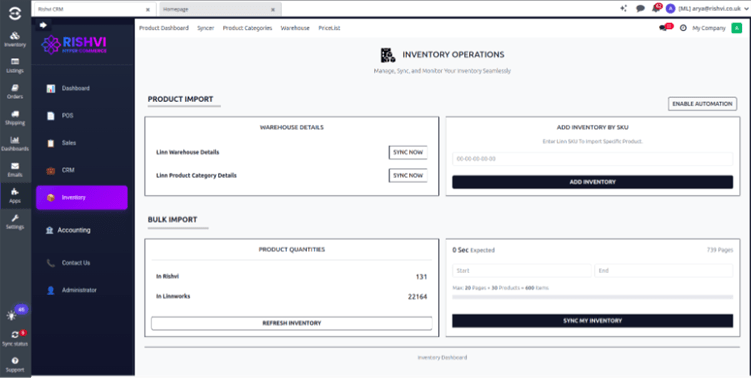
1. Product Import Section
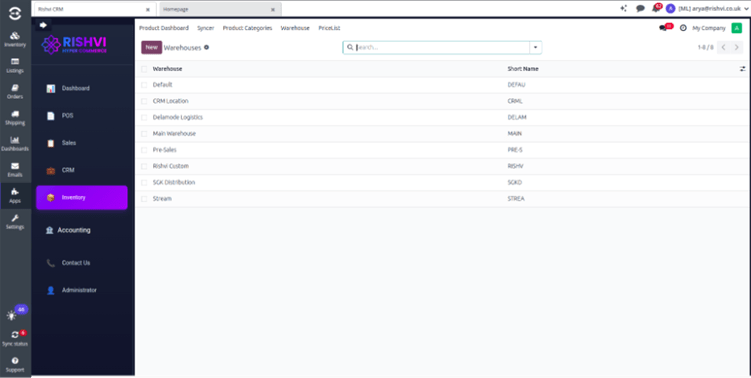
1.1 Linn Warehouse Details
- This section syncs the list of warehouses from Linn works into Rishvi.
- Clicking “Sync Now” will
- Fetch all warehouses configured in Linn works
- Update or create warehouse records in Rishvi
- Ensure that warehouse IDs are mapped correctly for future operations
✔ Useful when adding new warehouses or refreshing existing warehouse data.
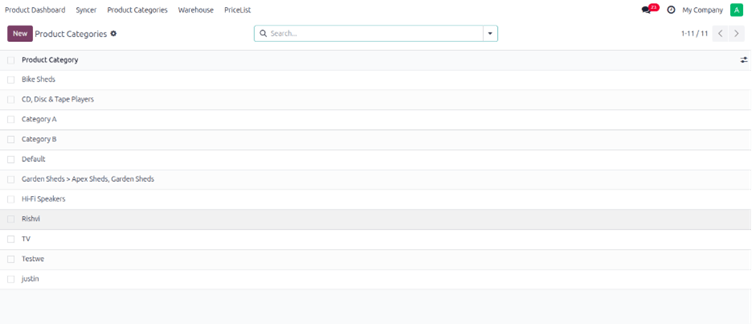
1.2 Linn Product Category Details
- Allows syncing product categories from Linn works to Rishvi.
- On clicking “Sync Now”:
- All categories/subcategories from Linn works get imported
- System maps them to Rishvi product categories
- Ensures product classification remains consistent on both systems
✔ Helpful for organizing products before bulk imports.
2. Add Inventory by Linn SKU
- This feature lets you manually add or adjust inventory for a specific product using its Linn SKU.
- Steps:
1.Enter the Linn SKU in the input box
2.Click “Add Inventory”
- The system fetches inventory details for that SKU from Linn works and updates Rishvi.
✔ Useful for quick corrections or updating a single product without full bulk sync.
3. Bulk Import Section
3.1 Refresh Inventory
This section deals with large-scale inventory synchronization.
Inventories in Rishvi:
- Number of product quantity records stored in Rishvi
Inventories in Linn works :
- Total Product Quantity records available in Linn Works
- Clicking “Refresh Inventory” will:
- Recalculate counts
- Compare inventory differences between both systems
✔ Helpful for monitoring data consistency.
3.2 Sync My Inventory (Bulk Sync)
This section is designed for multi-page dynamic inventory imports.
- Start Page & End Page
- Define how many pages to fetch from Linn works.
- Example: Pages 1 to 20 (each page = 30 products)
- System calculates:
- Total pages
- Maximum number of products to sync (e.g., up to 600)
- Clicking “Sync All Inventory” will:
- Fetch inventory in batches
- Update all product quantities in Rishvi
- Ensure both systems stay fully synchronized
✔ Best for first-time setup or full system refresh.
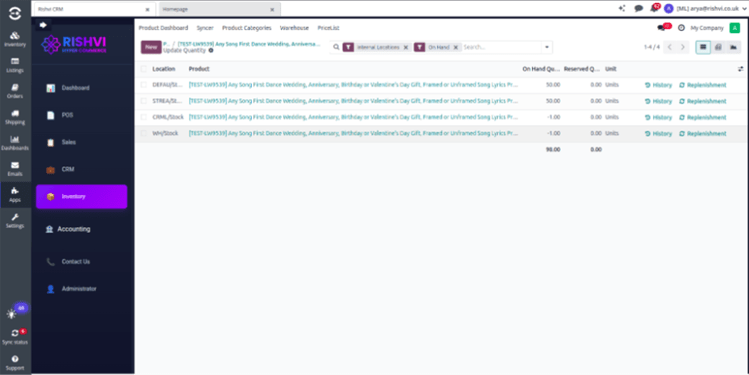
4.On- Hand Quantity
On hand quantity represents the current Physical Inventory available for a product in your warehouse. It’s the real time count of items physically present and available for sale or
Use.
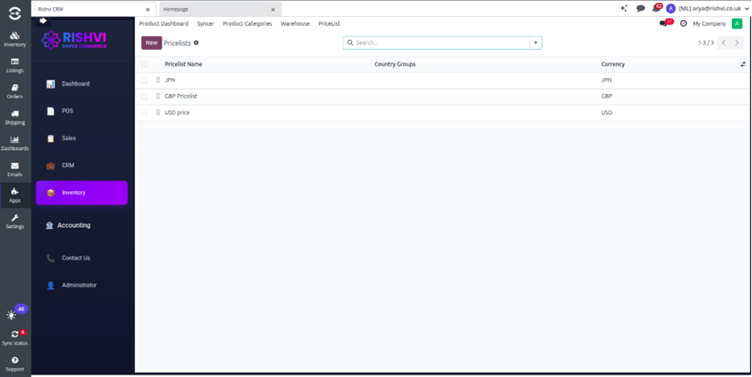
5.Pricelists
The Pricelists menu allows you to manage product selling prices that come from Linn works or are maintained in Rishvi. It ensures that the correct pricing is applied during order creation, product syncing, and customer billing.
Purpose of the Pricelists Menu
Pricelists help businesses maintain flexible pricing rules for products.
Here we ensure that:
- Product prices coming from Linn works are synced properly
- Rishvi and Linn works always reflect the same selling price
- Future orders use accurate pricing
- Special prices or custom pricing rules are applied correctly
Inside Rishvi, you can also manually:
- Create new pricelists
- Set pricing rules
- Define discounts or markups
- Assign currencies
- Limit the pricelist to a specific customer or customer group
Useful when your business needs separate pricing structures.
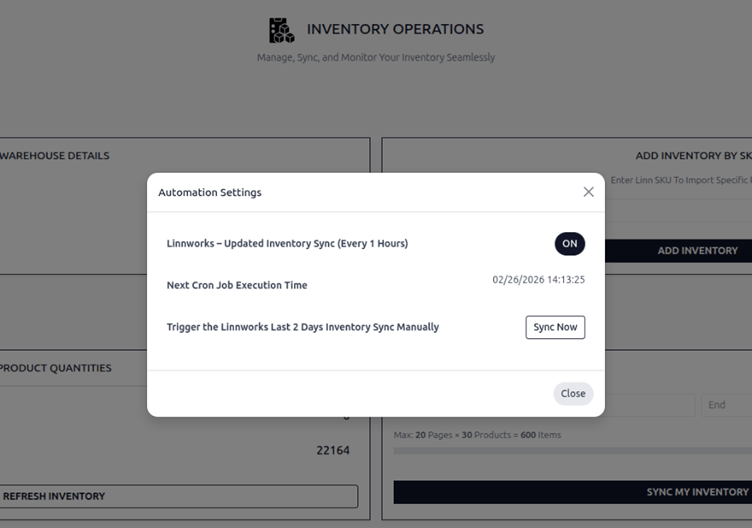
Automated Inventory Sync (Cron Job)
The system includes a scheduled cron job that automatically synchronizes inventory updates from Linn works. This job fetches stock changes and quantity updates from the last 2 days, ensuring that inventory levels remain accurate and up to date.
The cron job runs automatically every 1 hour, maintaining stock consistency between systems without requiring manual intervention. The interface also displays the Next Execution Time, so users can see when the next automatic inventory sync is scheduled.
Additionally, a Manual Sync option is available, allowing users to trigger the inventory synchronization instantly whenever immediate stock updates are required.
ORDER MANAGEMENT
The Order Management Dashboard in Hyper Linn works CRM provides a centralized interface to manage orders between Linn works and Rishvi. It supports both single order operations and bulk order processing, making it efficient for daily synchronization, testing, and monitoring order flow.
Prerequisites / Initial Configuration
Before using the Order Management Dashboard, ensure the following features are enabled in the system:
- Pricelists
Enable pricelists to correctly map and apply pricing for orders imported from Linnworks. - Discounts
Enable discounts to ensure any promotional or discounted prices from Linnworks are reflected accurately in Rishvi. - Product Variants
Enable product variants to handle products with different attributes such as size, color, etc.
How to Enable
- Go to Settings
- Navigate to the respective sections:
- Sales → Pricelists
- Sales → Discounts
- Inventory → Product Variants
- Enable the required options
- Click Save
- These configurations are mandatory for proper order synchronization and data consistency.
Objectives of the Dashboard
- Import and sync orders from Linn works to Rishvi
- Track order status across both platforms
- Import supporting data like shipping services and country details
- Monitor synced, pending, cancelled, and returned orders
- Handle both single and bulk order operations.
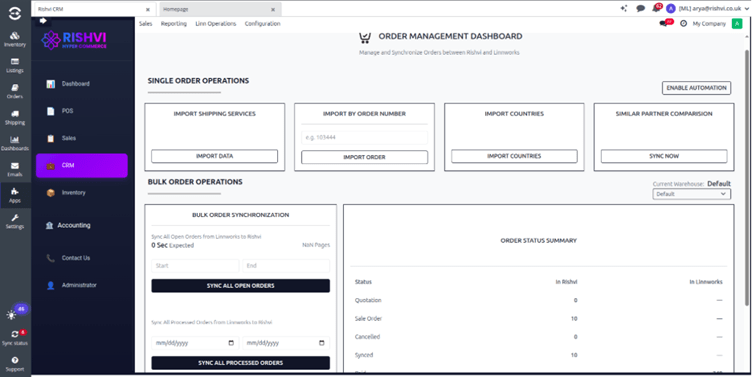
Single Order Operations
Import Orders by Order Number
The Import Orders by Order Number feature enables users to retrieve and process a specific order instantly by entering its Linn works order number.
This functionality is particularly useful in scenarios such as:
- Verifying the status of a specific order
- Reprocessing or synchronizing an individual order
- Resolving order-related discrepancies
To use this feature, enter the relevant Linn works order number in the provided field and click on Import. The system will then:
- Fetch the corresponding order from Linn works
- Process the order based on configured integration rules
- Create a new record or update the existing record in Rishvi accordingly
Import Shipping Services
The Import Shipping Services button allows users to synchronize shipping service records directly from Linn works into Rishvi.
When this button is clicked, the system sends an request to Linn works and retrieves the complete list of configured shipping services. The fetched data is then processed and automatically created inside Rishvi as shipping service records.
Import Countries
Syncs country master data (billing/shipping countries) from Linn works, ensuring consistent address mapping and validation.
Similar Partner Comparison
The Similar Customers button helps identify and manage duplicate or partially matching customer records within the system.
When this button is clicked, the system automatically scans and compares customer records based on predefined matching criteria such as name, email address, phone number, company name, or other key identifiers.
Bulk Order Operations
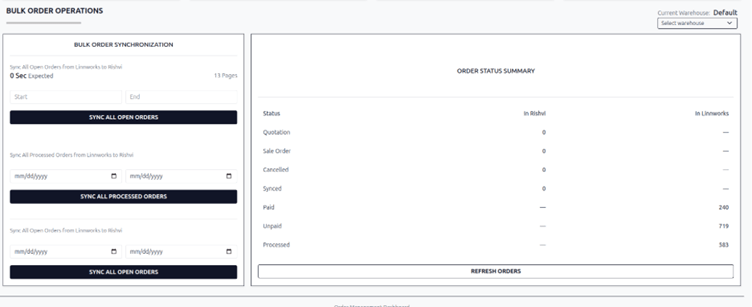
Sync Open Orders
The Sync Open Orders feature allows users to import open orders from Linn works into Rishvi based on a selected page range and a specific warehouse.
This functionality is especially useful when handling large volumes of orders and when synchronization needs to be controlled in batches.
🔹 How It Works:
- Warehouse Selection
The user selects the desired warehouse from which open orders need to be fetched.
Only orders assigned to the selected warehouse in Linn works will be retrieved. - Page Range Selection
Since Linn works returns orders in paginated format via API, the user can specify: - Start Page
- End Page
The system will fetch orders only within this defined range.
Sync Processed Orders
The Sync Processed Orders feature enables users to import processed (completed/fulfilled) orders from Linn works into Rishvi based on a selected date range and warehouse.
This functionality provides controlled synchronization of historical or completed orders while ensuring warehouse-specific filtering.
🔹 How It Works:
- Warehouse Selection
The user selects the specific warehouse from which processed orders need to be fetched.
Only orders assigned to the selected warehouse in Linn works will be considered. - Date Range Selection
The user specifies: - Start Date
- End Date
The system will retrieve only those processed orders whose processed/completed date falls within the selected range.
Sync Open Orders
The Sync Open Orders feature allows users to import open (unprocessed/pending) orders from Linn works into Rishvi based on a selected date range and specific warehouse.
This functionality ensures controlled synchronization of active orders while filtering data according to operational requirements.
🔹 How It Works
1. Warehouse Selection
The user selects the warehouse from which open orders should be fetched.
Only orders assigned to the selected warehouse in Linn works will be retrieved. This ensures warehouse-specific accuracy in stock and order management.
2. Date Range Selection
The user defines:
- Start Date
- End Date
The system will fetch only those open orders whose order date falls within the selected date range.
This allows partial syncing instead of importing all open orders at once.
Refresh Orders
The Refresh Orders feature retrieves and display the total number of orders from both Rishvi and Linn works based on selected warehouse and order statuses.
This feature is designed to provide a quick statistical overview of orders in each system without performing a comparison or reconciliation.
The system displays the total count of orders in Rishvi based on:
- Quotation
- Cancelled
- Sale Order (Confirmed Orders)
The system displays the total count of orders in Linn works based on:
- Paid
- Unpaid
- Processed
🔹 Warehouse-Based Filtering
Before refreshing, the user selects a specific warehouse.
Only orders associated with the selected warehouse are considered in:
- Rishvi
- Linn works
This ensures that the displayed data is warehouse-specific and operationally accurate.
Create and Sync Order with Linn works
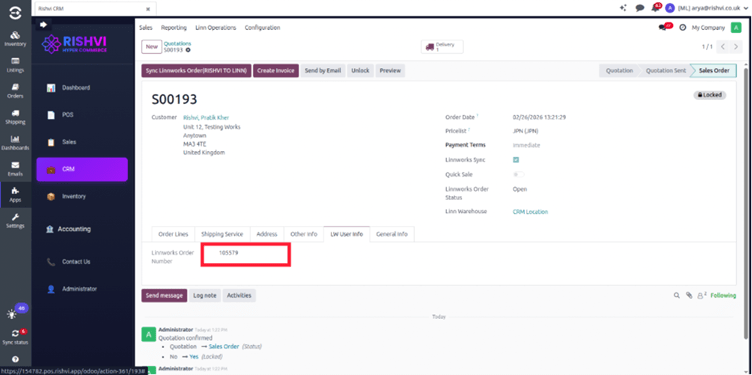
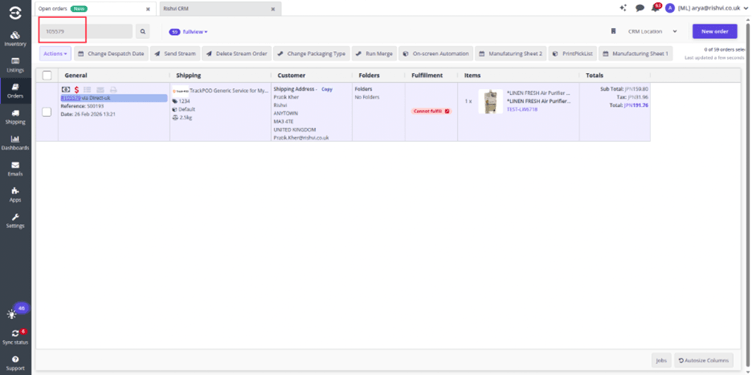
When a new order is created in CRM and confirmed as a Sale Order, the system generates a Sync with Linn works button. This button becomes available only after confirmation, ensuring that only finalized orders are pushed to Linn works.
Once the user clicks Sync with Linn works, the order details are sent to Linn works via API, and a Linn works Order Number is generated. This Linn works Order Number is stored in the order record, allowing the user to directly search and verify the order inside Linn works using that reference number. This ensures smooth traceability between both systems
Quick Sale Feature
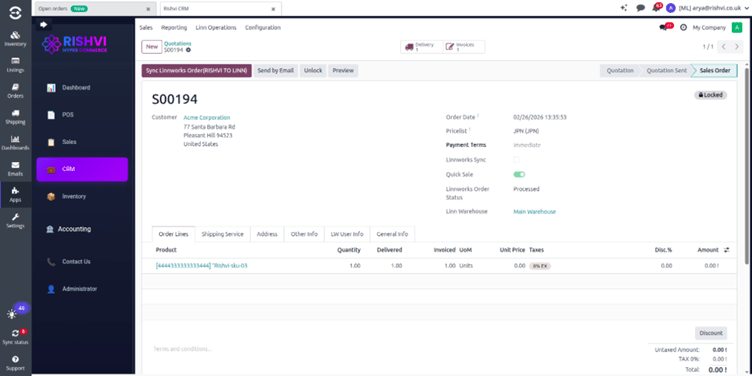
The Quick Sale feature allows automatic creation of delivery and invoice when confirming a sales order. When the Quick Sale toggle is enabled, the system streamlines the sales process by reducing manual steps.
Once the user clicks Confirm, the system automatically generates the Delivery Order and creates the Invoice instantly. This eliminates the need to manually validate delivery or create the invoice separately, making the sales workflow faster and more efficient.
Automated Order Sync (Cron Job)
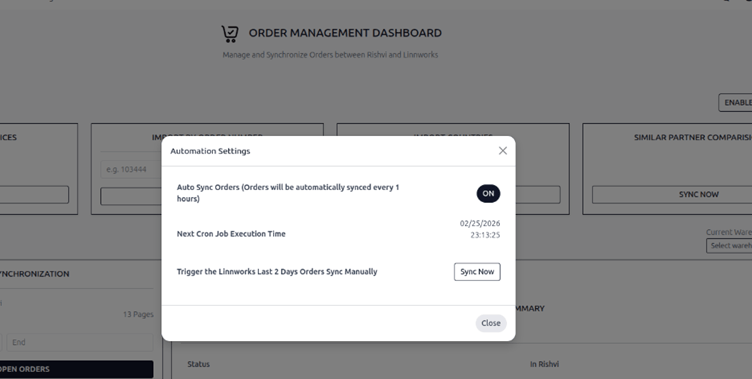
The system includes a scheduled cron job that automatically synchronizes order updates from Linn works. This job fetches and updates all orders modified within the last 2 days, ensuring that recent changes such as status updates, payments, or processing updates are reflected accurately in the system.
The cron job runs automatically every 1 hour, keeping both platforms up to date without manual intervention. The interface also displays the Next Execution Time, allowing users to see when the next automatic sync will occur.
Additionally, users are provided with a Manual Sync option. This allows the synchronization process to be triggered instantly, without waiting for the next scheduled execution. This is especially useful when immediate updates are required.
HYPER LINNWORKS CRM Special Case Scenarios & System Behavior
The following points describe important system behaviors and constraints when working with the Linnworks–Hyper CRM integration. These should be clearly understood to avoid inconsistencies in order and inventory management.
1. Order Payment Requirement
- Orders must be marked as paid in Linnworks before processing.
- Unpaid orders should not be processed, as this may lead to synchronization or workflow inconsistencies.
2. Inventory Source of Truth
- Linnworks is the single source of truth for inventory.
- Inventory updates should always originate from Linnworks.
- Rishvi Inventory reflects stock levels based on synchronization and should not be relied upon for inventory accuracy.
3. Negative Stock Handling
- Hyper Linnworks CRM allows negative stock, meaning stock levels can go below zero.
- Linnworks does not allow negative stock.
- This difference may lead to mismatches if stock is not managed carefully, especially when processing orders.
4. Order Sync & Processing Workflow (Critical Scenario)
This is an important edge case in the integration flow:
- Orders must first be in “Open” status and synced/imported into Hyper Linnworks CRM
- After syncing, order processing should be done in Linnworks.
- Once processed in Linnworks, the auto-sync cron will update the order status in Hyper Linnworks CRM (e.g., from Open → Processed).
⚠️ Special Case:
- If an order is processed directly in Linnworks without being initially synced to
Hyper LInnworks CRM:
- That order will NOT be fetched by the cron job.
- It will not appear automatically in RIshvi.
✅ Workaround:
- Such orders can still be manually imported into Hyper LInnwork CRM using the Order Number from the Dashboard
Linnworks Mode
Overview
Linnworks Mode is a configuration feature that provides controlled access to the Hyper Linnworks CRM application. It allows administrators to enable or disable user interaction with the system through a simple toggle mechanism.
This feature is primarily used to restrict access to the application interface when required, ensuring better control over system usage and data consistency.
Functionality
Linnworks Mode operates through a toggle-based control:
- When Linnworks Mode is Enabled (ON):
- The application icon is hidden or disabled.
- When Linnworks Mode is Disabled (OFF):
- The application icon is visible and accessible.
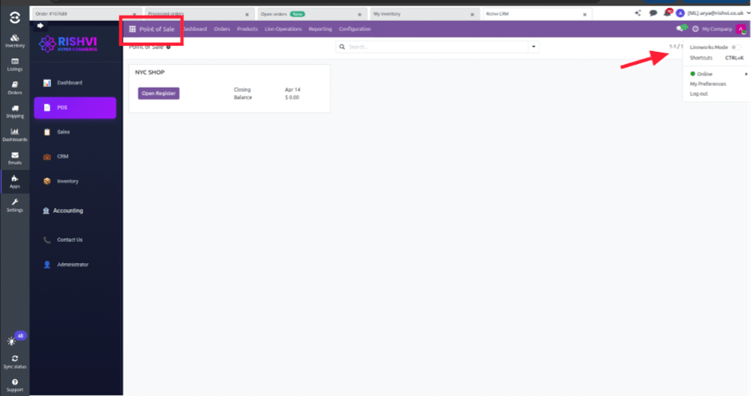
Location
The Linnworks Mode toggle is accessible from the top-right corner of the screen, It is represented as a quick-access toggle in the user menu panel, making it immediately available to administrators without navigating to a separate settings page.
Summary
Avoid direct processing in Linnworks before initial sync to prevent missing orders in Hyper Linnworks CRM
Always follow the correct sequence: Sync → Process in Linnworks → Auto-sync update in Rishvi


