


Configuring System Parameters
System parameters are key-value pairs used to control system behavior without modifying the source code. They allow administrators to dynamically configure features, integrations, and business logic.
What are System Parameters?
System parameters store configuration values in the format:
Key = Value
- Key → A unique identifier for the configuration
- Value → The setting or data associated with the key
Accessing System Parameters
To configure system parameters:
- Navigate to:
Settings → Technical → Parameters → System Parameters
The following system parameters must be configured to enable Hyper Linnworks CRM/POS integration:
- rishvi_app : CRM/POS
- lw_customer_id : xxxxxx
- lw_token : <your_linnworks_api_token>
- rishvi_base_app_url : https://olbdsknit5g6vrtztqq4wlotea0vvtxm.lambda-url.eu-west-2.on.aws
Ensure all values are correctly configured to avoid integration issues.
Note
If you do not have the required values such as lw_token, lw_customer_id, or any other system parameter, please contact the Rishvi Administrator to obtain the necessary credentials and configuration details.
Ensure all values are correctly set to avoid integration issues.
Inventory Operations
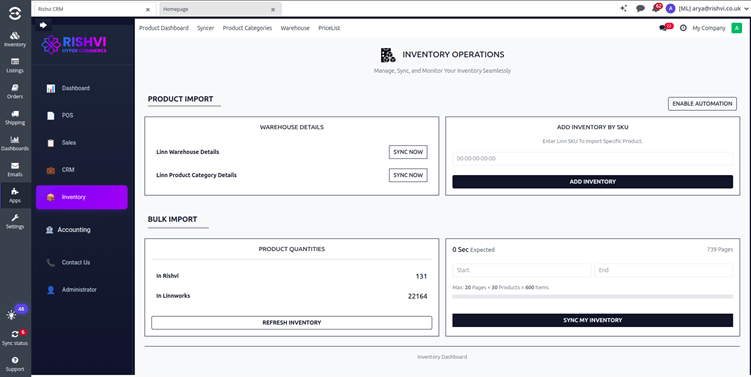
Inventory allows you to manage, sync, and update all inventory data between Rishvi and Linnworks. It provides tools to import warehouses, categories, product quantities and bulk inventory in a structured and automated way.
1. Product Import Section
1.1 Linn Warehouse Details
- This section syncs the list of warehouses from Linn works into Rishvi.
- Clicking “Sync Now” will
- Fetch all warehouses configured in Linn works
- Update or create warehouse records in Rishvi
- Ensure that warehouse IDs are mapped correctly for future operations
✔ Useful when adding new warehouses or refreshing existing warehouse data.
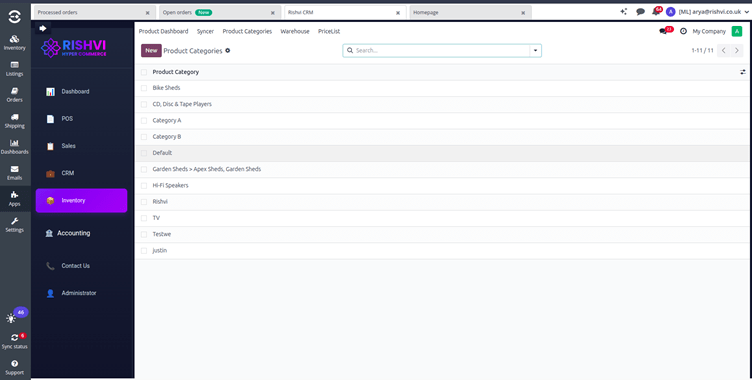
1.2 Linn Product Category Details
- Allows syncing product categories from Linn works to Rishvi.
- On clicking “Sync Now”:
- All categories/subcategories from Linn works get imported
- System maps them to Rishvi product categories
- Ensures product classification remains consistent on both systems
✔ Helpful for organizing products before bulk imports.
2. Add Inventory by Linn SKU
- This feature lets you manually add or adjust inventory for a specific product using its Linn SKU.
- Steps:
- Enter the Linn SKU in the input box
- Click “Add Inventory”
- The system fetches inventory details for that SKU from Linn works and updates Rishvi.
✔ Useful for quick corrections or updating a single product without full bulk sync.
3. Bulk Import Section
This section deals with large-scale inventory synchronization.
Inventories in Rishvi:
- Number of product quantity records stored in Rishvi
Inventories in Linn works :
- Total Product Quantity records available in Linn Works
- Clicking “Refresh Inventory” will:
- Recalculate counts
- Compare inventory differences between both systems
✔ Helpful for monitoring data consistency.
3.2 Sync My Inventory (Bulk Sync)
This section is designed for multi-page dynamic inventory imports.
- Start Page & End Page
- Define how many pages to fetch from Linn works.
Example: Pages 1 to 20(each page = 30 products)
- System calculates:
- Total pages
- Maximum number of products to sync (e.g., up to 600)
- Clicking “Sync All Inventory” will:
- Fetch inventory in batches
- Update all product quantities in Rishvi
- Ensure both systems stay fully synchronized
✔ Best for first-time setup or full system refresh.
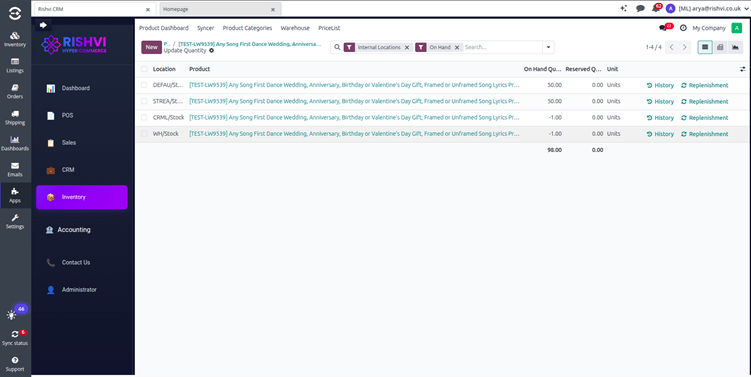
4.On-Hand Quantity
On hand quantity represents the current Physical Inventory available for a product in your warehouse. It’s the real time count of items physically present and available for sale or Use.
5.Pricelists
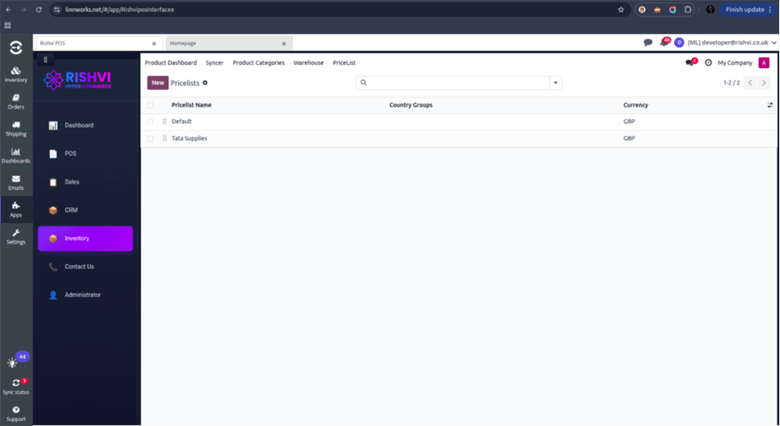
The Pricelists menu allows you to manage product selling prices that come from Linn works or are maintained in Rishvi. It ensures that the correct pricing is applied during order creation, product syncing, and customer billing.
Purpose of the Pricelists Menu
Pricelists help businesses maintain flexible pricing rules for products.
Here we ensure that:
- Product prices coming from Linn works are synced properly
- Rishvi and Linn works always reflect the same selling price
- Future orders use accurate pricing
- Special prices or custom pricing rules are applied correctly
Inside Rishvi, you can also manually:
- Create new pricelists
- Set pricing rules
- Define discounts or markups
- Assign currencies
- Limit the pricelist to a specific customer or customer group
Useful when your business needs separate pricing structures.
Automated Inventory Sync (Cron Job)
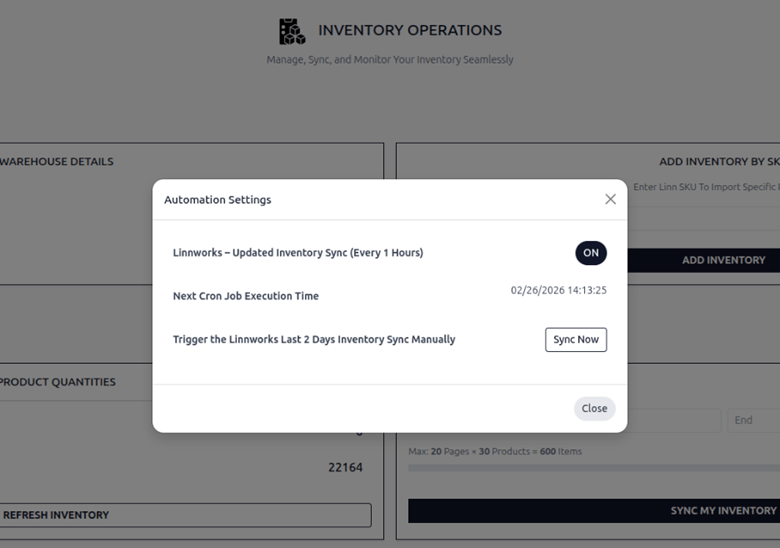
The system includes a scheduled cron job that automatically synchronizes inventory updates from Linn works. This job fetches stock changes and quantity updates from the last 2 days, ensuring that inventory levels remain accurate and up to date.
The cron job runs automatically every 1 hour, maintaining stock consistency between systems without requiring manual intervention. The interface also displays the Next Execution Time, so users can see when the next automatic inventory sync is scheduled.
Additionally, a Manual Sync option is available, allowing users to trigger the inventory synchronization instantly whenever immediate stock updates are required.
Hyper Linnworks POS
A Point of Sale (POS) system is used to process sales transactions in retail or service-based environments. It helps in managing product purchases, recording payments, updating inventory, and generating receipts in real time. POS provides a fast and efficient interface for cashiers or salespersons to handle orders.
🔹 Core Features of POS
- Product Selection – Quickly browse and add products to the order list.
- Payment Processing – Supports multiple payment types like cash, card, or digital payments.
- Discount Application – Apply discounts either per product or on the entire order.
- Inventory Update – Automatically reduces stock quantities when sales are completed.
- Receipt Generation – Printable and digital receipts for customers.
- Order Validation – Ensures all necessary details (like payment, items, etc.) are correct before confirming.
- Customer Management – Option to link sales with customers if enabled.
- Real-time Sync (in integrated systems) – Syncs sales data with backend and other systems.
🔹 Advanced Features of POS
- Multi-session Handling – Multiple POS terminals can operate simultaneously. Each session tracks sales operations and can be closed individually for accounting purposes.
- Cash Control – Allows tracking of cash inflow and outflow during a POS session. Opening and closing balance can be configured to ensure accuracy in handling physical cash.
- Barcode Scanning Support – Products can be added instantly using barcode scanners, reducing manual search and speeding up the billing process.
- Sales Order History – POS maintains a history of previous orders, allowing actions such as receipt reprinting, refunds, or cancellation of sales.
- User Access Control – Different access levels can be assigned to employees. For example, only authorized users may apply discounts, modify orders, or close sessions.
- Receipt Customization – Receipts can be personalized with details such as store logo, contact information, terms and conditions, or QR/barcode.
- Accounting Integration – Sales and payment data are automatically posted to accounting journals, ensuring accurate financial records without manual intervention.
- Tax Management – Product-specific and region-specific taxes are automatically calculated and applied during the transaction.
- Session End-of-Day Summary – At the end of each session, a detailed summary is generated, including total sales, payment methods used, and cash difference (if enabled).
POS with Linnworks Integration
We integrated our Hyper Linn works POS system with Linn works to automate and synchronize key business data like shipping services, product categories, price lists, and discounts.
Instead of manually configuring these in POS, we fetch them directly from Linn works using APIs. This improves accuracy, reduces setup time, and ensures that whatever is updated in Linn works is reflected in the POS.
This integration helps the POS work with real-time business configuration and makes selling faster and more efficient at the billing counter.
The dashboard gives a quick summary of all major POS features linked with Linn works. It is designed in a card-based layout where each card represents a key functionality like shipping services, discounts, pricelists, or product categories.
From here, the user can directly perform actions like importing data or enabling features. This helps in managing POS configurations in one place without going into multiple settings. It improves usability and makes it easy for admins to trigger sync and configuration updates at any time.
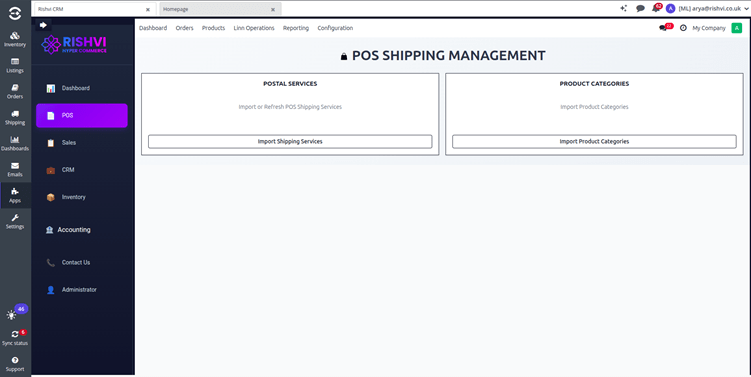
Import Shipping Services
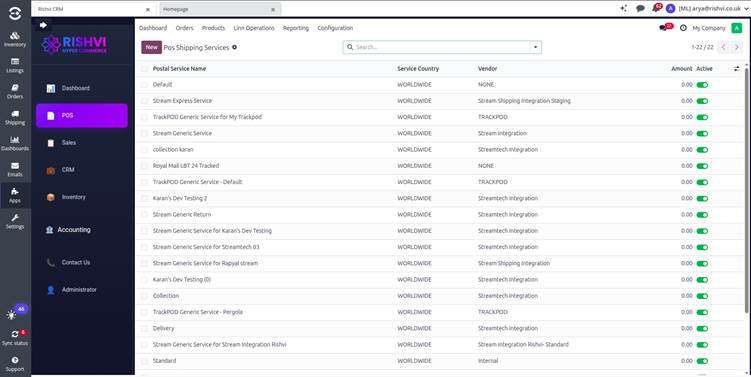
- This feature pulls shipping service details directly from Linn works using API.
- Once imported, these services are visible in the POS frontend.
- We later converted the dropdown into clickable buttons for faster selection during billing.
Enable Pricelists
- Activates support for pricelists in POS.
- Useful when different prices need to be shown based on customer type, season, or promo rules.
- Syncs with backend price configurations.
Import Product Categories
- Fetches product categories from Linn works and saves them in Odoo POS categories.
- Helps organize products in POS by proper grouping.
- Reduces manual setup and keeps categories consistent with Linn works.
POS Settings Configuration
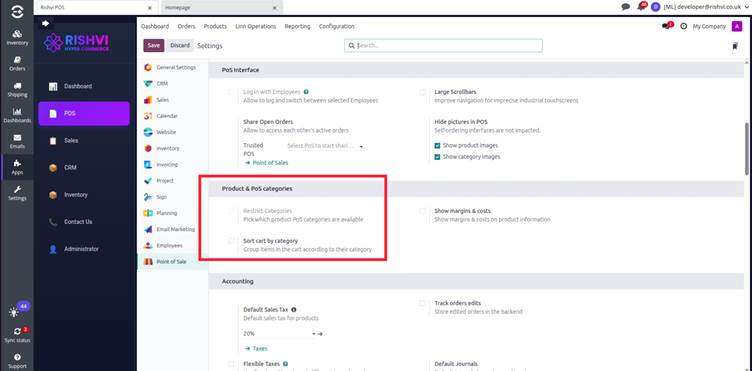
Make sure POS categories are not restricted to allow all product categories to be available in the POS.
In the POS settings, do not enable the option “Restrict Categories” under Product & POS categories.
This ensures all products linked to any category are visible and selectable during POS operations.
POS Sales Flow with Linn works Integration
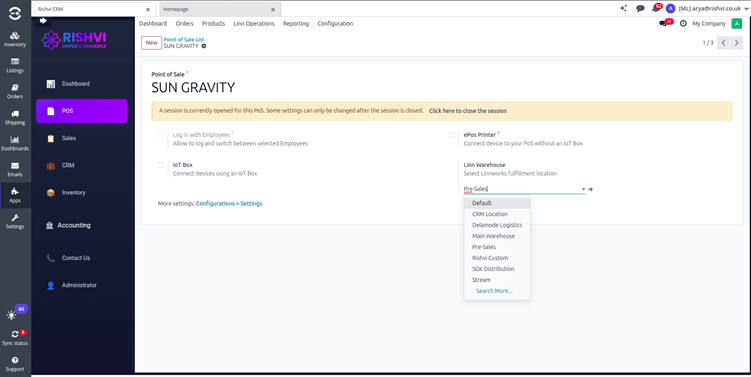
- Linn Warehouse Selection
You can select the required Linn works warehouse from the Linn Warehouse dropdown in the POS configuration screen.
This selection determines where all POS session orders will be created in Linn works.
The selected warehouse will control:
- Where the order is pushed in Linn works
- From which warehouse stock is deducted
- Which warehouse stock is shown as available in POS
For example, if you select Pre-Sales, all orders created in that POS session will go to the Pre-Sales warehouse in Linn works and stock will be reduced from that warehouse only.
If you select Main Warehouse, orders and stock deduction will happen only in Main Warehouse.
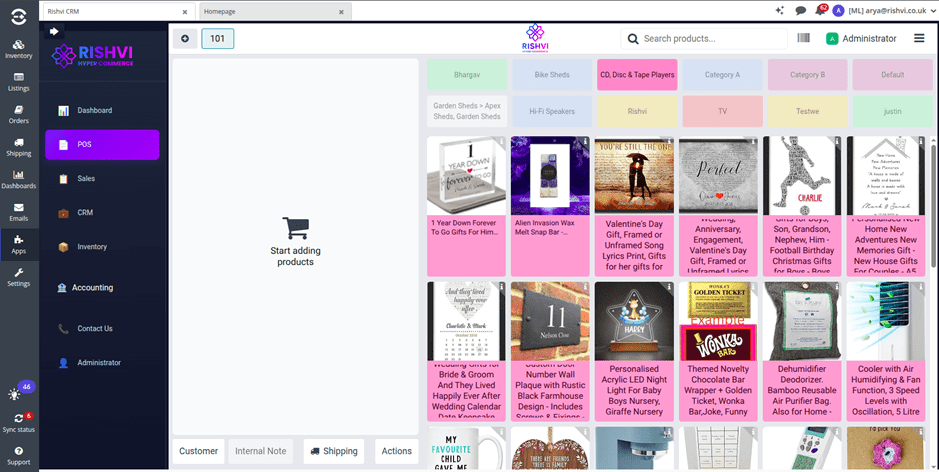
2. Open a POS Session
The cashier opens a new POS session to start billing. This initializes the POS interface and allows transactions to begin
POS will display product availability based only on the selected warehouse.
Stock from other warehouses will not be shown or combined.
This ensures accurate warehouse-level stock control and prevents selling stock from the wrong location.
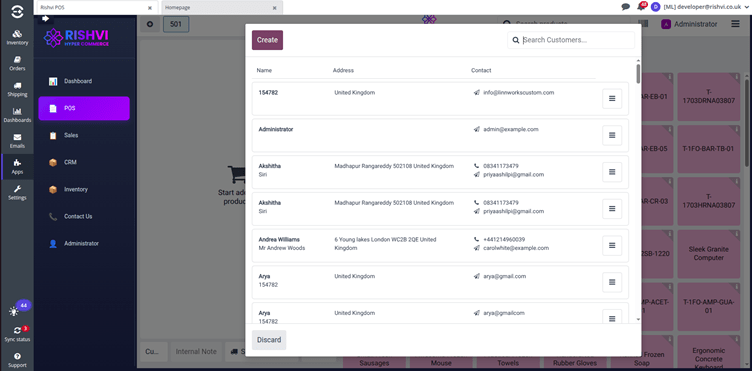
3. Select/Add Customer
Before processing the order, a customer can be selected from existing records or added as a new customer. This helps in proper order tracking and syncing with Linn works.
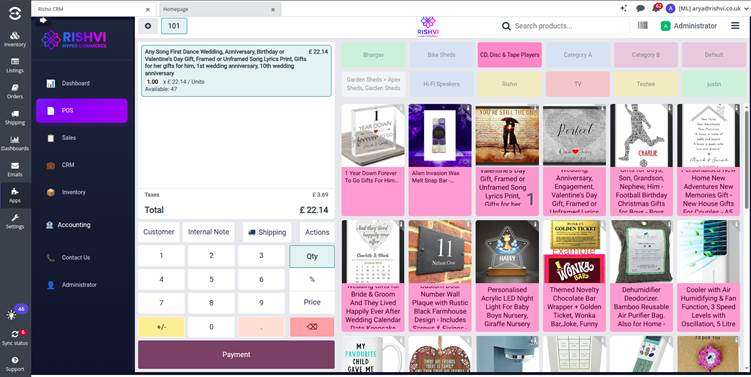
4. Add Products to Cart
The required products are added to the cart. Product details like price, stock, and category are fetched from Odoo.
5. Apply Discount (If Required)
If discounts are enabled, the cashier can apply a discount to the order or individual products.
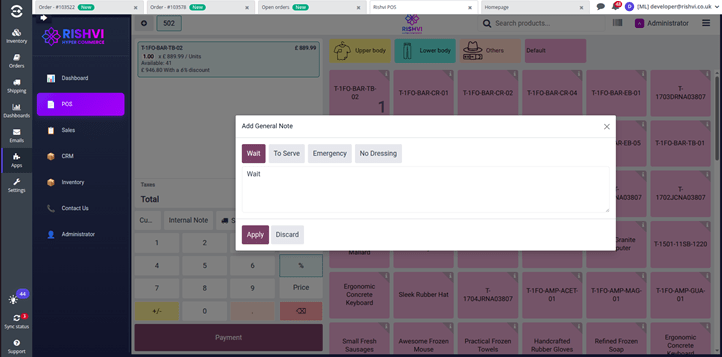
6. Add Internal Note
The cashier can enter internal notes or instructions if any additional information needs to be passed along with the order.
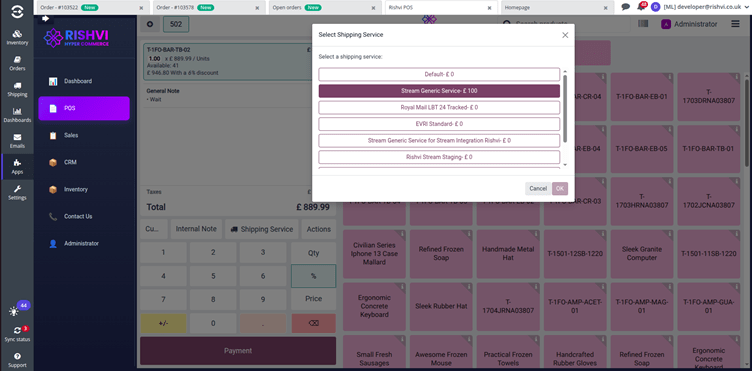
7. Select Shipping Service
Shipping options imported from Linn works via API are displayed as selectable buttons. The cashier selects the appropriate service based on order requirements.
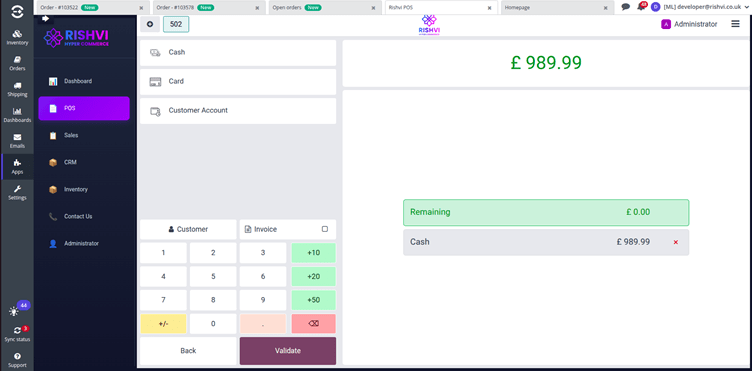
8. Validate the Order
Once all details are confirmed (customer, products, discount, internal note, and shipping), the order is validated through the POS.
9. Automatic Order Sync to Linnworks
After validation, the order is automatically sent to Linn works.
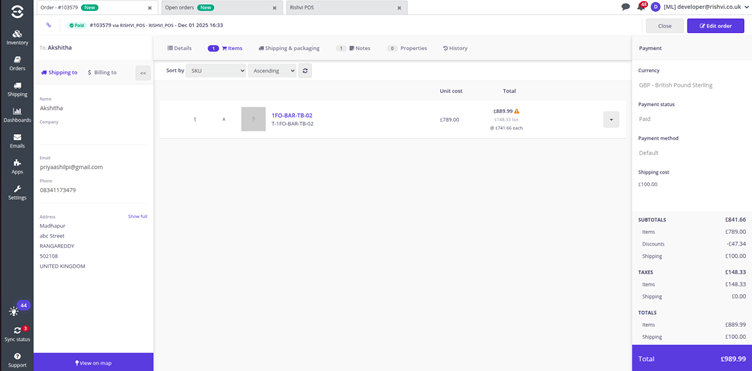
A Linn works Order Number is generated and stored in the POS backend order record.
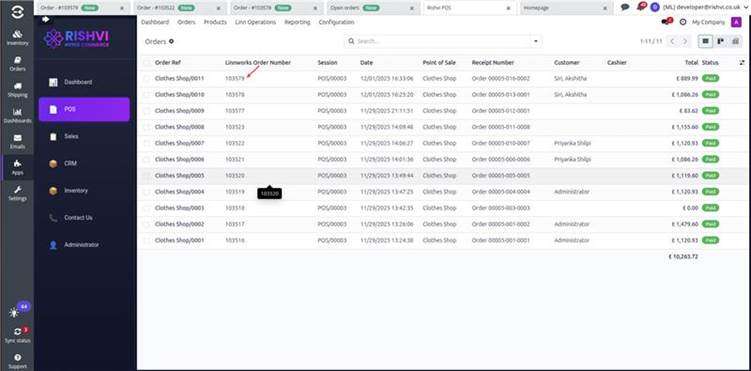
10. Order Verification
Using the Linn works Order Number:
- The exact order can be located in Linn works.
- All details such as customer, products, discount, internal note, and shipping service can be verified.
- This ensures successful synchronization between POS and Linn works.
Linnworks Mode
Overview
Linnworks Mode is a configuration feature that provides controlled access to the Hyper Linnworks POS application. It allows administrators to enable or disable user interaction with the system through a simple toggle mechanism.
This feature is primarily used to restrict access to the application interface when required, ensuring better control over system usage and data consistency.
Functionality
Linnworks Mode operates through a toggle-based control:
- When Linnworks Mode is Enabled (ON):
- The application icon is hidden or disabled.
- When Linnworks Mode is Disabled (OFF):
- The application icon is visible and accessible.
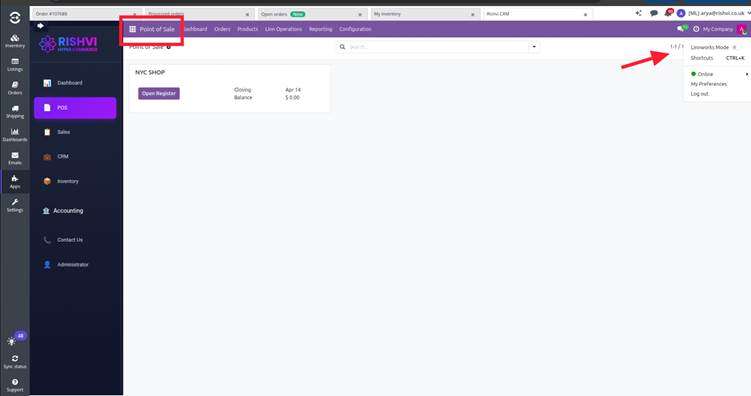
Location
The Linnworks Mode toggle is accessible from the top-right corner of the screen, It is represented as a quick-access toggle in the user menu panel, making it immediately available to administrators without navigating to a separate settings page.
Conclusion
With this POS and Linn works integration, we have transformed the entire retail billing process into a smart, automated, and highly efficient workflow. From importing product categories and shipping services directly from Linn works to managing customers, discounts, notes, and validating POS orders; all actions are seamlessly synchronized in real time.
The system eliminates manual configuration, ensures data accuracy, and speeds up the checkout process. Most importantly, once a sale is validated, the backend automatically generates a Linn works Order Number, allowing the operations team to instantly track, verify, and process the order directly in Linn works.
This integration not only improves operational transparency and order traceability but also enhances customer experience and reduces human errors. Overall, it provides a fast, scalable, and reliable POS solution fully aligned with Linn works business operations.


