


The Stream – Linnworks integration is designed to automate and simplify order dispatch, delivery route planning, and tracking; all directly within Linnworks.
Once Stream is selected as the shipping vendor for an order, The integration automatically transfers the order to Stream, manages route planning, and syncs all key updates back to Linnworks.
How It Works – Workflow:
1. Sync from Linnworks to Stream
- Orders in Linnworks allocated with Vendor = Stream are automatically sent to Stream every 15 minutes.
- This transfer includes all necessary order details for route planning and dispatch.
2. Route Planning in Stream
Once the order appears in Stream:
- Planning the shipment.
- Select the Service & Service Level
- Add Route Information (Optional)
- Select the Stock Location (if not set in Linnworks)
- Set the On Hand Date (if not set in Linnworks)
- Select the Delivery Method
- Set Unload and Assembly Time
- Select the Planned Slot
- Confirm Slot (Optional)
- Add Driver Notes (Optional)
- Save the Order
- Go to Advanced Planning.
- Select the Order from the “Unplanned” section of the screen and drag it to the “Selected Run” section.
- Enter the Run Details:
- The Run Number should be added in the description (this will be reflected in Linnworks).
- Click Save.
- Locate the Runs from “Runs (DD/MM/YY – DD/MM/YY)”.
- Select the Driver and Vehicle (this information will be reflected in Linnworks).
- Click the Route button to route the order.
- Lock the Order to finalise the routing.
This completes routing and planning directly in the Stream Portal.
3. Webhook Trigger from Stream
- A webhook is triggered when a route is Locked in Stream.
- This updates Linnworks in real time with route and dispatch details.
4. Sync from Stream to Linnworks
When the delivery route is locked in Stream, Linnworks is updated with:
- Dispatch Date
- Dispatch Day (Visual Order Identifier)
- Run Number (Visual Order Identifier)
- Van Registration Number (Stored as Order Extended Property)
- Delivery Routing Sequence (Stored as Order Extended Property)
- Additional Extended Properties (if required by Stream)
Order Processing & Route Updates:
When an order is closed or locked into a delivery route in Stream:
- Trigger
- Stream sends a webhook with all necessary route details.
- Update Linnworks
- Dispatch Date → Updated in Linnworks.
- Dispatch Day (Visual Identifier) → Synced to Linnworks.
- Run Number (Visual Identifier) → Synced to Linnworks.
- Delivery Routing Sequence (stream_GroupSequence) → Stored as an extended property.
- Driver Name Stream_driverName
- Vehicle Name Stream_vehicleName
- Driver Notes Stream_driverNotes
- Other properties → Added as required by Stream.
Exchange Process (Returns & Replacements):
1. Identification in Linnworks
- Orders flagged with a Stream service containing “pickup” are automatically recognised as Exchange Orders.
2. Notification to Stream
- Stream receives the flagged Exchange order and is instructed to handle:
- Collection of returned items.
3. API Integration for Exchange Handling
- When an exchange is created in Linnworks:
- An API request registers the exchange in Stream.
- Background services call backend functions to process the exchange.
4. Continuous Sync
- Updates to Exchange orders in Linnworks are sent to Stream every 15 minutes until the route is marked Closed in Stream.
Updating Stream from Linnworks Changes:
2.1 Changes to Sync
- Dispatch Date
- Order Status
- Customer Details (Address, Contact Info)
- Product Quantity or SKU changes
- Tracking information
2.2 Sending Updates to Stream API
- Extract updated details from Linnworks.
- Format according to Stream API requirements.
- Send updates to Stream API to maintain consistency.
Key Features & Benefits:
- Automated Order Flow
- No manual steps – orders allocated to Stream are sent automatically.
- Label Printing from Linnworks
- Generate shipping labels directly in Linnworks.
- Supports multi-label printing, parcel splitting, and service-specific formats.
- Label Printing from Linnworks
- Real-Time Tracking Updates
- Tracking numbers generated in Stream sync automatically back to Linnworks.
- Accurate Delivery Planning
- All key route details (dispatch date, van allocation, run number, etc.) are synced to Linnworks for visibility.
- Exchange & Collection Support
- Integrated process for orders involving both delivery and product collection.
The Stream–Linnworks integration allows businesses to:
- Automate order transfer and updates.
- Print labels and manage shipments in one place.
- Maintain accurate tracking and route visibility.
- Handle exchanges efficiently with integrated delivery and collection.
Steps to Configure Stream Shipping in Linnworks:
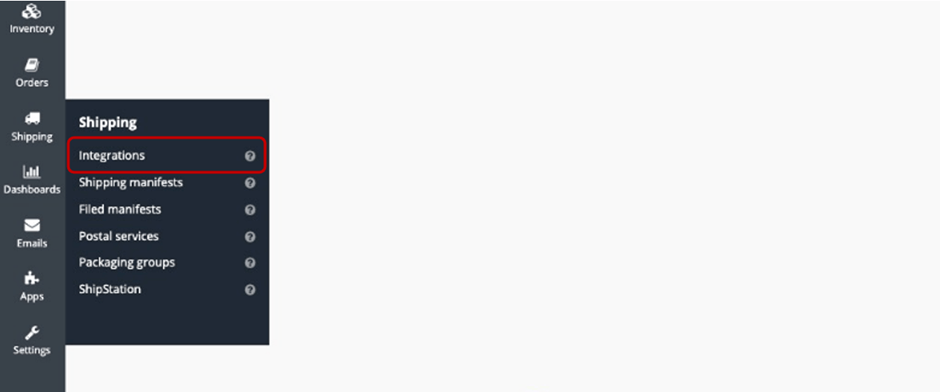
Step 1: Click on Shipping in the left-hand menu, then select Shipping Integrations from the submenu.
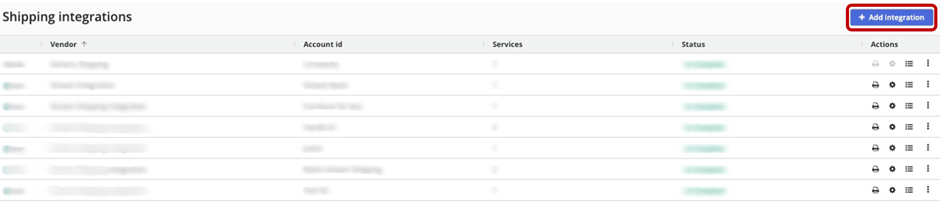
Step 2: Click on the Add Integration button in the top-right corner of the Shipping Integrations screen.
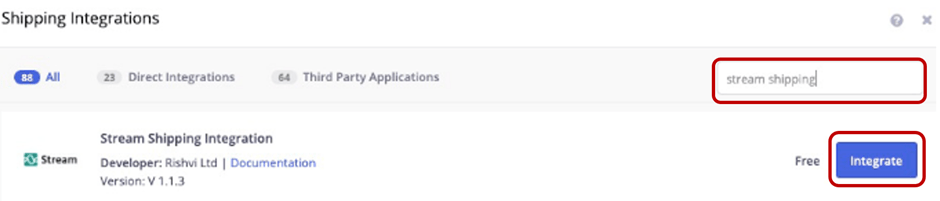
Step 3: Search for Stream Shipping Integration in the search bar, then click Integrate.
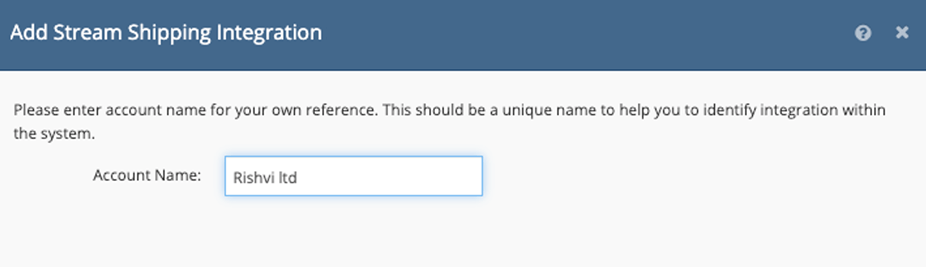
Step 4: In the Add Stream Shipping Integration pop-up, enter a unique Account Name for reference, then click Next.
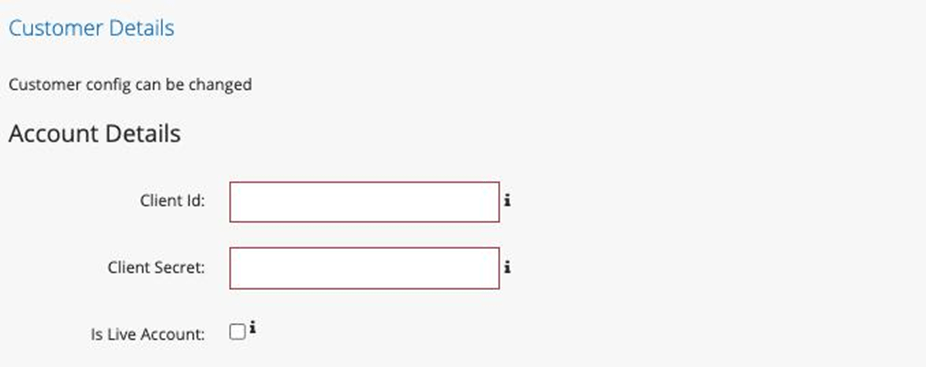
Step 5: Enter the Client ID and Client Secret provided by Stream or the channel partner.
- Select Is Live Account if you wish to use the live Stream environment.
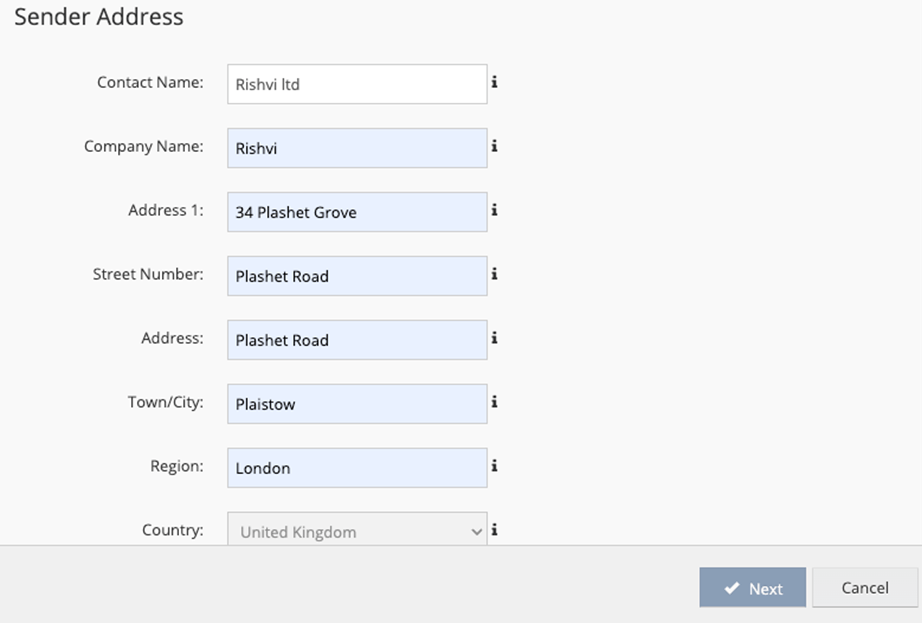
Step 6: Enter the Sender Address details, including:
- Contact Name
- Company Name
- Address (Street, Town/City, Region, Country)
Click Next to proceed.
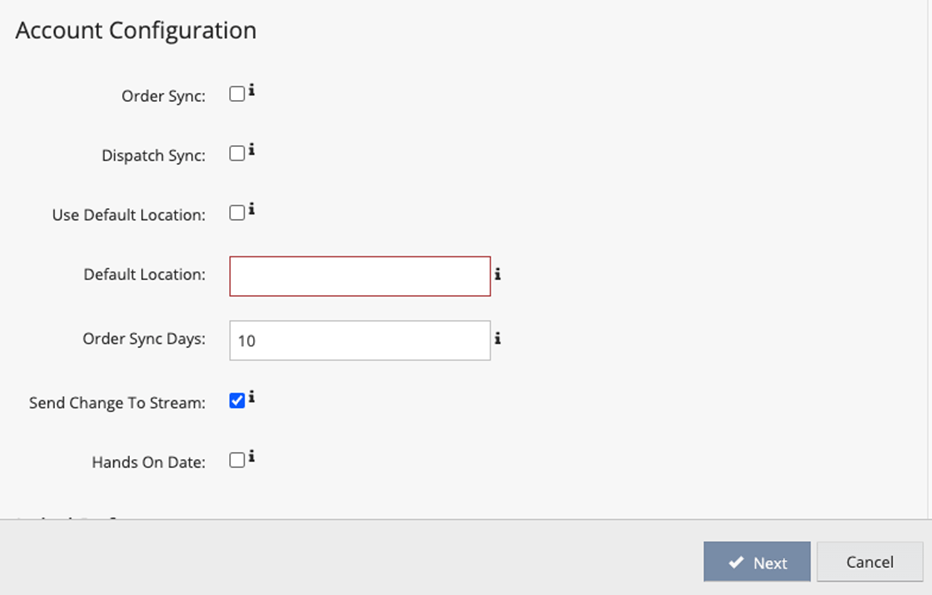
Step 7: Configure the Account Settings:
- Order Sync – Sync orders to Stream when selected.
- Dispatch Sync – Update dispatch dates when selected.
- Use Default Location – If selected, the Default Location will be sent to Stream.
- Default Location – Enter the depot name in Stream where you want orders assigned.
- Order Sync Days – Set the number of days to send orders to Stream (default: 10 days).
- Send Change to Stream – If selected, any updates made in Linnworks after sending the order will be updated in Stream.
- Hands On Date – If selected, the order will be sent to Stream with the hand-on date matching the order received date.
Click Next to continue.
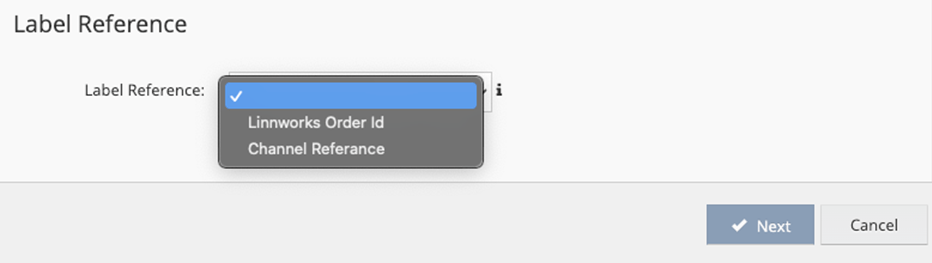
Step 8: Select the Label Reference type:
- Linnworks Order ID – The label will print the Linnworks order number.
- Channel Reference – The label will print the channel reference.
Click Next to proceed.
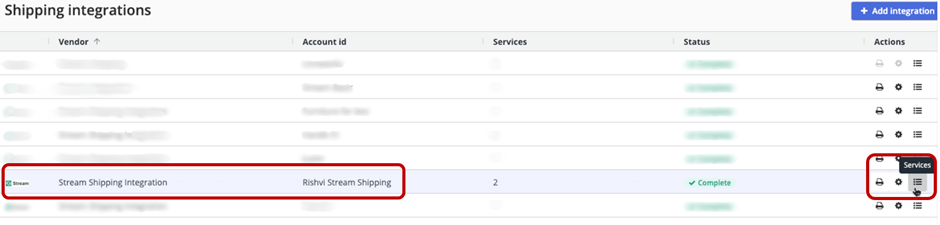
Step 9: In the Shipping Integrations list, locate the Stream Shipping Integration you just set up and click on the Services icon under the Actions column.
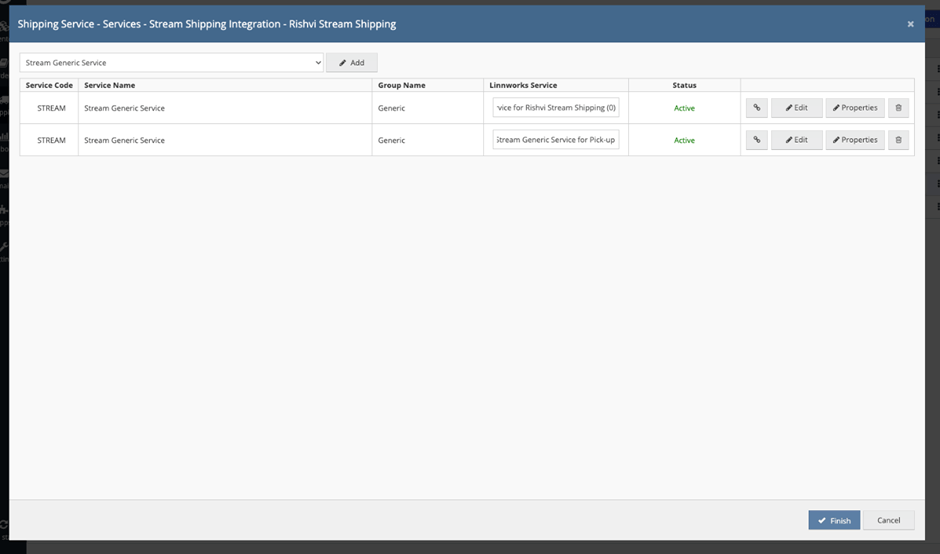
Step 10: Click on Add Service to create a new shipping service.
- If the Service Name contains “Pick-up”, the service will be configured to send a collection request rather than a delivery.
- Once all services are added, click Finish to complete the setup.
The Stream–Linnworks shipping and planning integration setup is now complete, enabling seamless order syncing, route planning, label printing, and tracking updates directly within Linnworks for streamlined shipping operations


