


RIS-SM-1016 Mark Order Process Shipping Label Printed
The “MarkOrderProcessShippingLabel” macro automates the process of marking orders as “Shipping Label Printed” within the system. This macro is particularly useful in streamlining order processing workflows by indicating that shipping labels have been generated for specific orders.
There are three steps you need to complete to start using the macro:
- 1. Go to Apps > Application Store > MarkOrderProcessShippingLabel > click Install and follow the on-screen instructions until the installation is complete.
- 2. Configure the macro.
- 3. Configure the rule in the Rules Engine screen.
Functionality
Parameter Input
This macro does not require any input parameters.
Rules Engine Integration
Seamlessly integrates with the Rules Engine, allowing it to be invoked based on predefined conditions or scheduled intervals.
Marking Orders
Automatically marks orders as “Shipping Label Printed” to indicate that shipping labels have been generated for them.
Workflow Optimization
Facilitates the smooth flow of order processing by providing a clear indication that shipping labels are ready for fulfillment.
Logging and Error Handling
Implements logging mechanisms to record actions for transparency and facilitate troubleshooting in case of errors.
Configure the macro
Once the MarkOrderProcessShippingLabel app is installed:
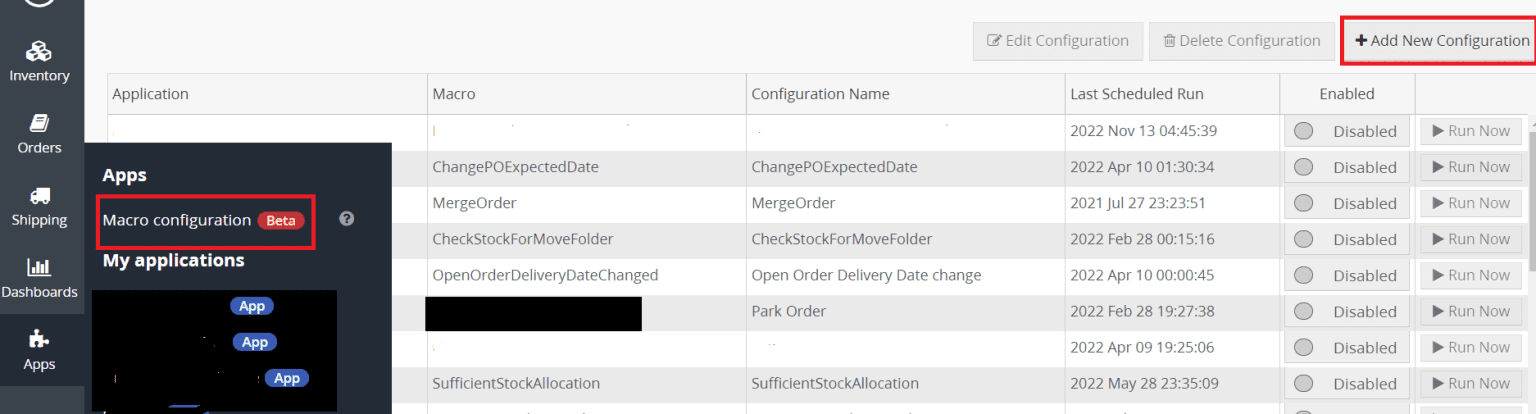
Step 1 : Go to Apps > Macro Configuration and click + Add new configuration.
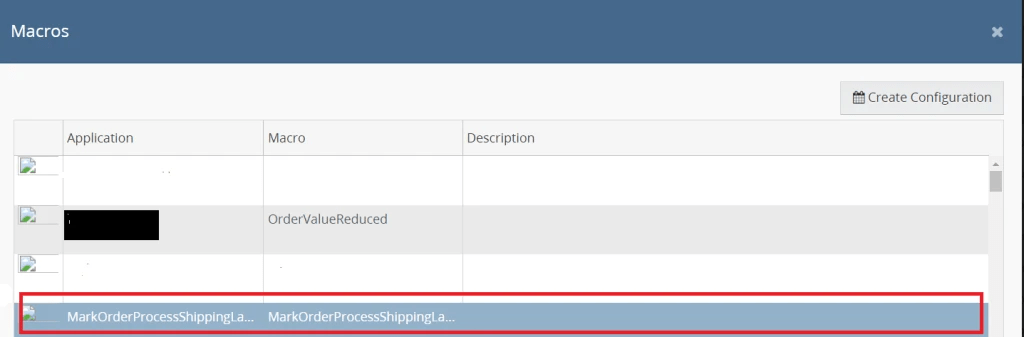
Step 2 : Select the Mark Order Process Shipping Label macro and click Create Configuration.
Step 3 : In the Macro Configuration screen, specify the below details and click Save:
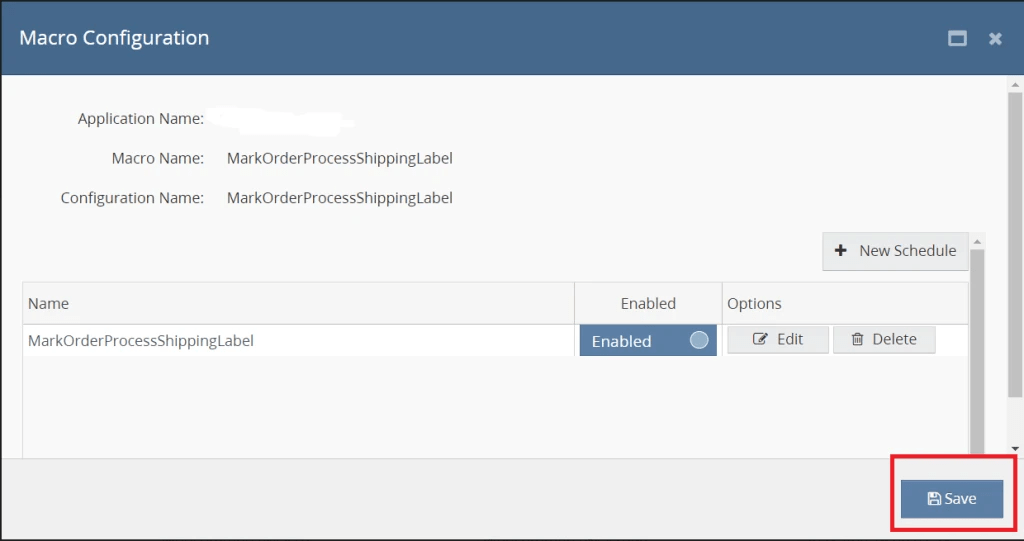
Step 4 : Make sure to enable the macro to continue with the Rules Engine configuration.

Usage of App
Parameters
This macro does not require any input parameters.
Execution
1. Execute the macro within the Rules Engine interface.
2. Trigger the marking process manually or schedule it to run at specified intervals.
Outcome
1. Automatically marks orders as “Shipping Label Printed” within the system.
2. Provides a clear indication to fulfillment staff that shipping labels are ready for orders, optimizing workflow efficiency.
3. Offers confirmation upon completion of the marking process and delivers any pertinent status updates or notifications.


